
The capture of screenshots is an indispensable component of the contemporary digital process, be it a designer presenting his or her work, a developer recording bugs, a content creator composing a tutorial, or a professional sharing information with colleagues. Although Mac has in-built snipping power, its specific snipping tools include a wide range of features such as immediate annotations, cloud posting, scroll capturing as well as extensor functions that can drastically enhance your productivity.
The right snipping tool changes a mere screen shot into an effective communication tool. In this ultimate guide or list we are going to discuss the top 10 Snipping Tools for Mac that fit various requirements and costs based on your needs so that we can identify one of the solutions that can step your screenshot level in 2025.
What is a Snipping Tool?
Snipping tool is a special software that captures, edits, and shares the screenshots with advanced features other than being a simple screen grab tool. Those applications enable their users to grab particular parts of their display, be it a rectangle, a complete window, the entire screen, or scrolling information, and instantly annotate, add arrows, text, blur filters and highlights to the captured contents.
The modern Snipping software for Mac move way beyond mere image capture by providing services such as automatic synchronization of clouds, OCR text reefs, video capture, pixel accurate measurements, and sharing with other users. They are full visual communication platforms where professionals can produce informative and polished screenshots in seconds rather than minutes, simplifying work in the task of documentation, design feedback, customer support, and content creation processes.
Why Mac Users Need Snipping Software
- Superior annotation features enable you to attach arrows, text, shape and highlights without having to open up separate annotation software.
- The possibility to easily collaborate with team members allows finding a direct connection and automatic uploading of contributions due to cloud integration and real-time sharing.
- Scrolling capture allows one to grab the whole web page or long documents that cannot be seen on the screen.
- OCR and text extraction features assist in drawing out the text easily out of pictures, and save you time on typing out your jobs.
- Organisational tools maintain your screen shot in tags, folders and searchable libraries rather than flooding your desk.
- The professional editing options include blurring sensitive content, accurate straight Camerawork, and the customness in watermarks on branded content.
How to Take a Screenshot on Mac (Built-In Shortcuts)
- Command + 3 + Shift takes your whole screen immediately and the full screen is saved on your desktop in the form of a file.
- Command + shift + 4 will convert your cursor to a cross-hair in order to pick a particular rectangular positioning to take.
- The + Command + 4 + Spacebar allows you to click any window to make it professional with a shadow effect.
- When in Shift + Command + 5, this opens the Screenshot tool bar, which has the option of recording and capture setting.
- Any Screenshot Shortcut Control + copies the image to clip board rather than saving the file.
- Screenshot.app is located under Applications Utilities to enable other features such as the addition of schedules and destinations.
We suggest you to check this blog also Great Online Tools
10 Best Snipping Tools for Mac (Free & Paid)
1. FireShot
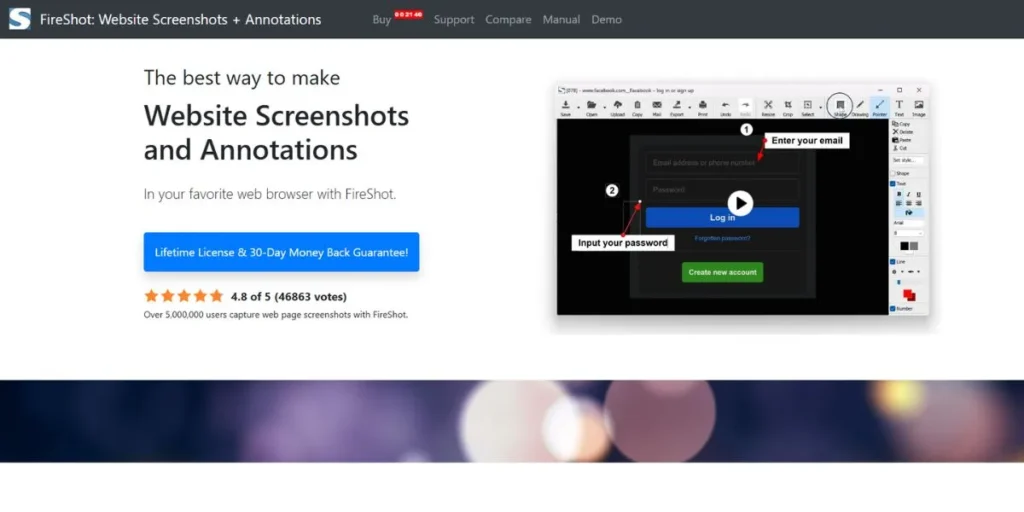
FireShot is a robust web-based tool in the form of a browser extension that was created to take an entire shot of a web page with down to the pixel precision. It is very good at capturing scrolling content which stretches far beyond what you can currently see, and is quite useful to web developers, web designers, and content developers who require a full screenshot of a web page. The extension works with Chrome, Firefox, and Edge with various export options, including PDF, PNG, and JPEG, and quality settings which could be adjusted to individual preferences.
Key Features:
- Full-page web capture
- Multiple export formats
- Brower extensions
- , integrated with browser extensions.
- Automatic scrolling capture.
Pros:
- Captures entire webpages
- Simple browser integration
- Multiple save formats
- Fast processing speed
Cons:
- Browser-dependent functionality
- Limited annotation tools
- No desktop capture
- Must be installed separately in the browsers.
Best Use Case: Web pages full length should be captured to be documented and archived.
Website: https://getfireshot.com
2. Droplr
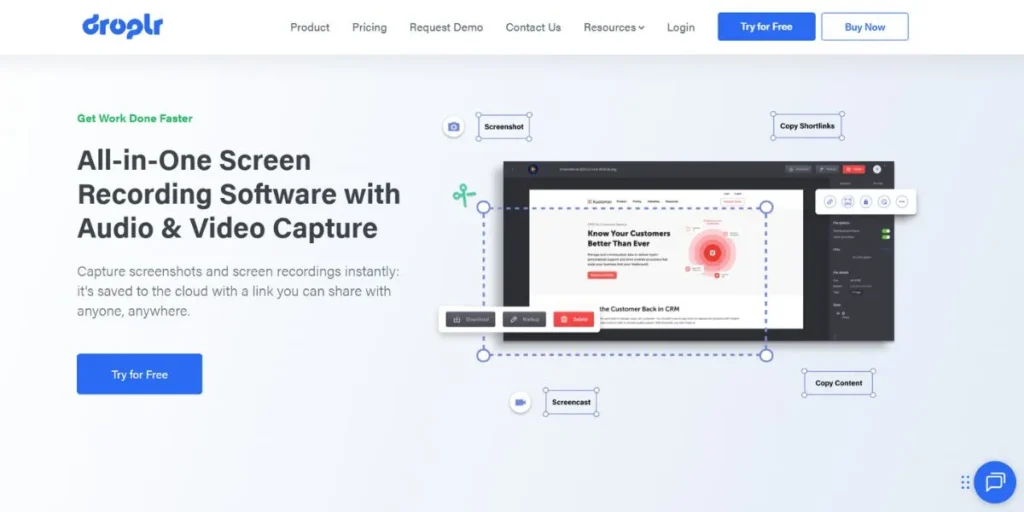
Droplr is an image sharing application that is built with sharing and sharing infrastructure equipped with the ability to share files in a team. As one of the most efficient snipping tools for Mac, it lets you can capture instantly and convert your captures to links that you can share immediately in seconds with this cloud first platform, ideal when working in remote teams or communicating with clients. In addition to screen shots, Droplr also supports screen videos, file drop and creation of GIFs, all with a refined interface, emphasizing quickness and simplicity to the busy professional.
Key Features:
- Instant cloud uploads
- Screen recording included
- Team collaboration characteristics.
- Custom branded links
Pros:
- Lightning-fast sharing
- Professional presentation
- Thorough media coverage.
- Team management tools
Cons:
- Subscription-based pricing
- Limited free tier
- Internet connection is needed.
- Premium features are paid-off.
Best Use Case: Teams that require real time visual communication and file sharing.
Website: https://droplr.com
3. PicPick
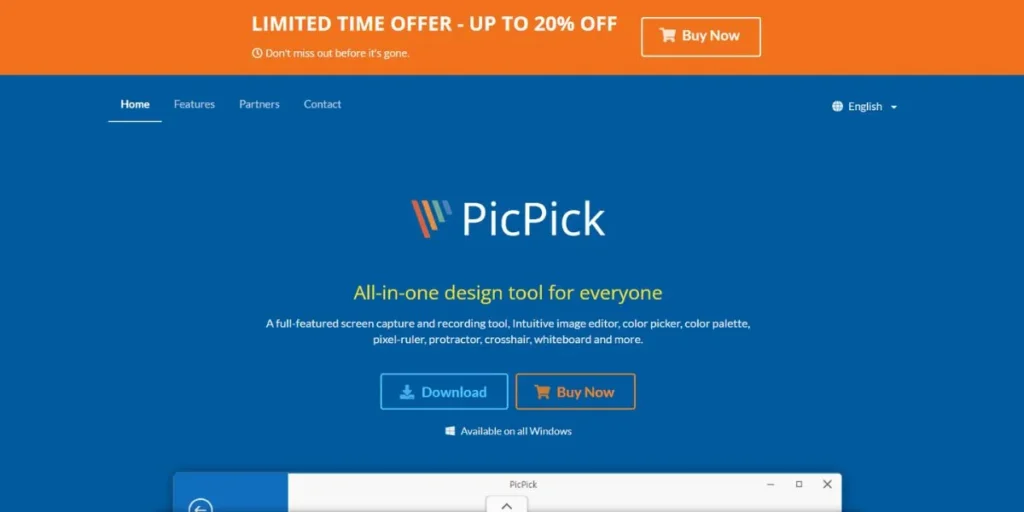
PicPick provides a complete all-in-one screenshot suitor that has an astonishing built-in image editor that competes with independent graphics applications. Its compatible features in Mac are the use of colour picker, pixel ruler, protractor, and crosshair, which are its main features and makes it a companion of a designer. There are multiple capture modes supported by the software such as scrolling windows and the editing package supports layers, effects and drawing tools to enable making of professional level annotations.
Key Features:
- Built-in image editor
- Design measurement tools
- Multiple capture modes
- Color picker utility
Pros:
- Extensive editing suite.
- Designer-friendly tools
- Free for personal
- Extensive capture options
Cons:
- Windows-focused primarily
- Steeper learning curve
- Cluttered interface
- Mac version limitations
Best Use Case: Use case is when the designers need the measurement tools and more editing functions.
Website: https://picpick.app
4. Monosnap
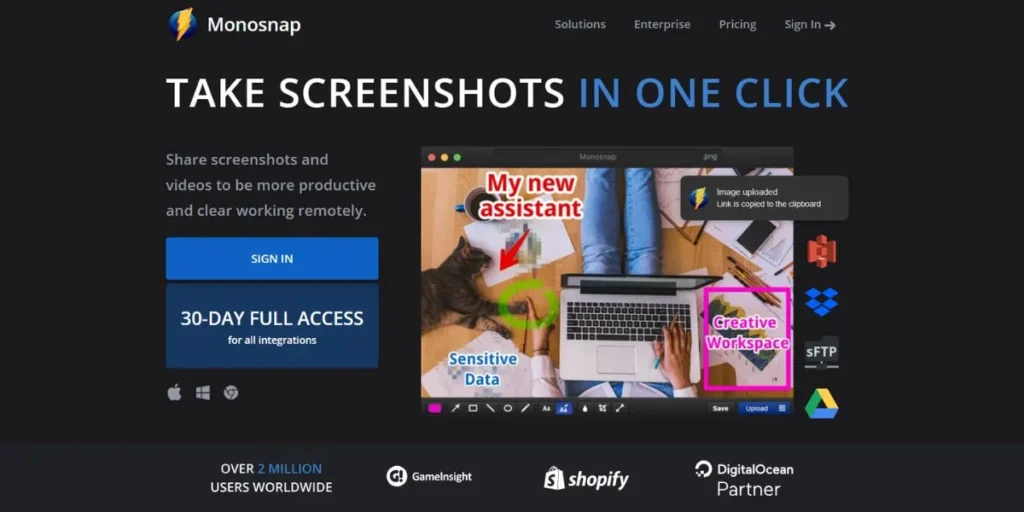
Monosnap has a very good balance in terms of simplicity and functionality, as it can both take screen shots and record videos in one lightweight, cost-effective, and easy-to-use package. This Snipping Tools for Mac solution has cloud drive capability and immediate sharing features and barebone annotation capabilities that satisfy the majority of daily requirements. It is user-friendly to beginners since the tool is of deconstructivist appeal but to the professional, it has adequate power to be used without overwhelming the user interface.
Key Features:
- Video recording capability
- Cloud storage integration
- Quick annotation tools
- Free plan available
Pros:
- Simple, clean interface
- Includes screen recording
- Affordable pricing
- Cross-platform support
Cons:
- Basic editing features
- Limited storage free
- Occasional sync issues
- Fewer advanced options
Best Use Case: Users seeking simple screenshot and screen recording in one tool
Website: https://monosnap.ai
5. Greenshot
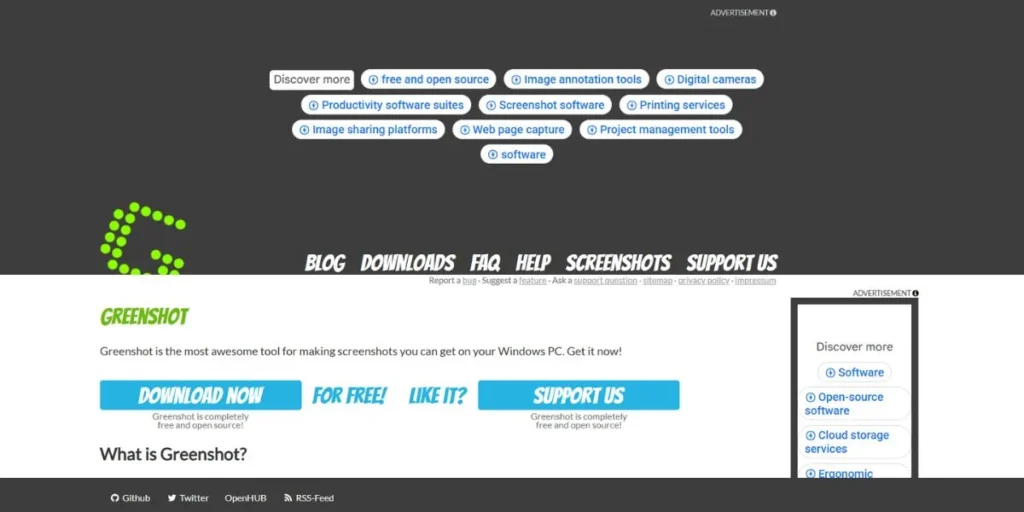
The adorable Greenshot is an open-source screenshot utility that is packed to the brim since it is free. Emerging as a result of community development, it provides flexible capture workflow and support of plugins as well as direct assistance with various programs such as Microsoft Office and image editors. Its un-obtrusive footprint and highly customizable hotkeys make it receive a cult following among power users looking to fully manage their screenshot processes, without the need to pay monthly subscriptions.
Key Features:
- Open-source and free
- Extensive plugin support
- Customizable workflows
- Office integration
Pros:
- Completely free
- Highly customizable
- Active community support
- Lightweight resource usage
Cons:
- Dated user interface
- Mac support limited
- It needs to be configured to be set up.
- Less polished experience
Best Use Case: Budget-conscious users wanting customizable, free screenshot software
Website: https://getgreenshot.org
6. Snagit
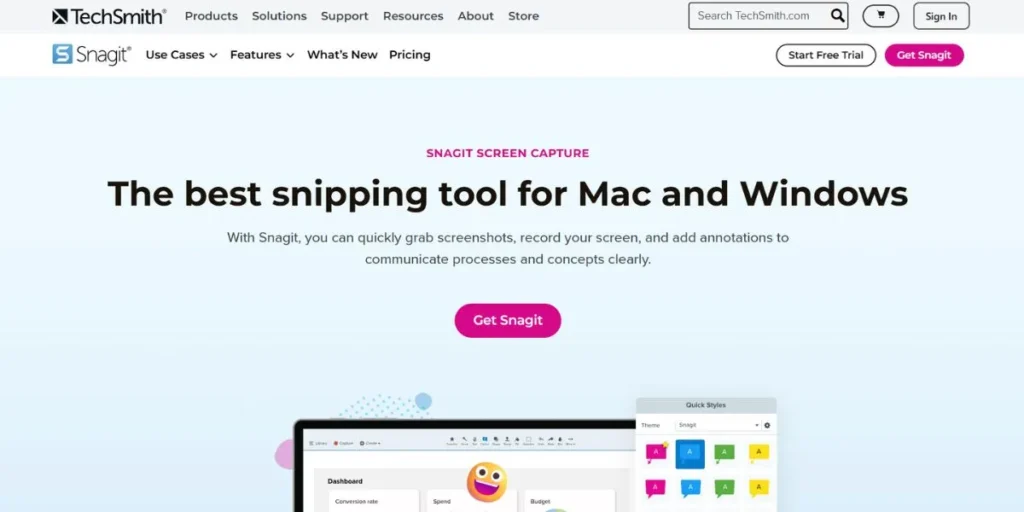
Snagit by TechSmith is the higher quality level of the Snipping Tools on Mac that has extended studio quality of the learning and screen recording along with professional level of the editing. The program has panorama scroll capture, intelligent object erase, step by step document tools and huge collection of templates and stamps. The All-in-One Capture technology that it has makes it identify what you are capturing as well as create the best settings which is why it will be the tool of choice to trainers and technical writers.
Key Features:
- Wide shot panning.
- Professional editing suite
- Template library included
- Video trimming tools
Pros:
- Industry-leading features
- Superior documentation tools.
- Regular updates
- Comprehensive tutorials
Cons:
- Premium pricing
- Resource intensive
- Annual subscription cost
- Overwhelming for basics
Best Use Case: to those professionals who develop training material, tutorials, documentation.
Website: https://www.techsmith.com/screen-capture.html
7. CleanShot X
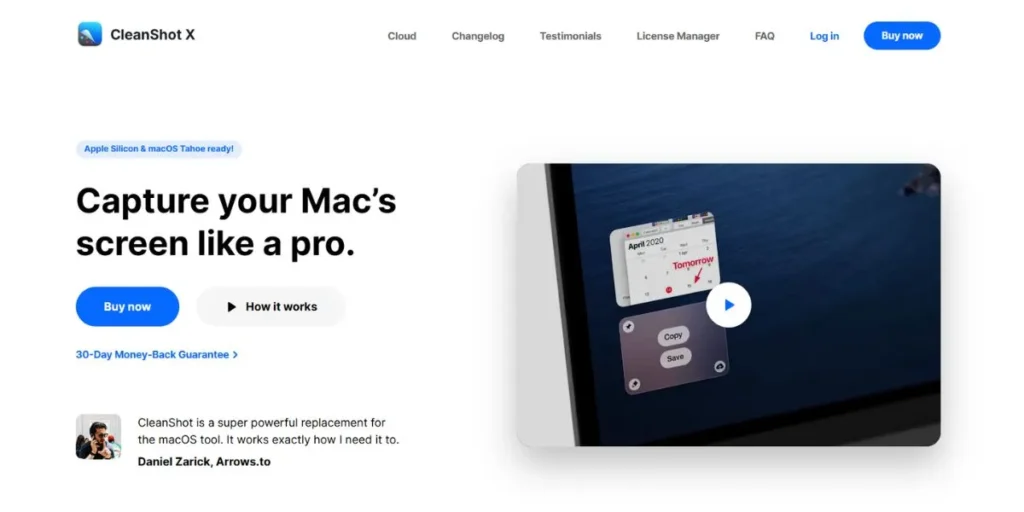
The native Mac design concept and focus on details have transformed the process of taking screenshots in CleanShot X. This new app stands out among the best snipping tools for Mac, with features such as scrolling capture, cloud upload, overlaying annotations, alongside self-timers, all wrapped in an interface that would lead someone to assume Apple designed it with their own hands. CleanShot X also comes with the unlike functionalities such as hiding desktop icons, replacing the background, and putting overlay quick access features that make the screenshots not only useful but also gorgeous.
Key Features:
- Native macOS design
- Scrolling capture support
- Built-in cloud service
- Desktop icon hiding
Pros:
- Beautiful Mac integration
- Innovative unique features
- Regular feature updates
- Intuitive user interface
Cons:
- Mac-only availability
- Subscription model pricing
- Cloud storage limited
- No mobile app
Best Use Case: When users of Mac computers desire high-quality, well-designed screenshots.
Website: https://cleanshot.com
8. Evernote
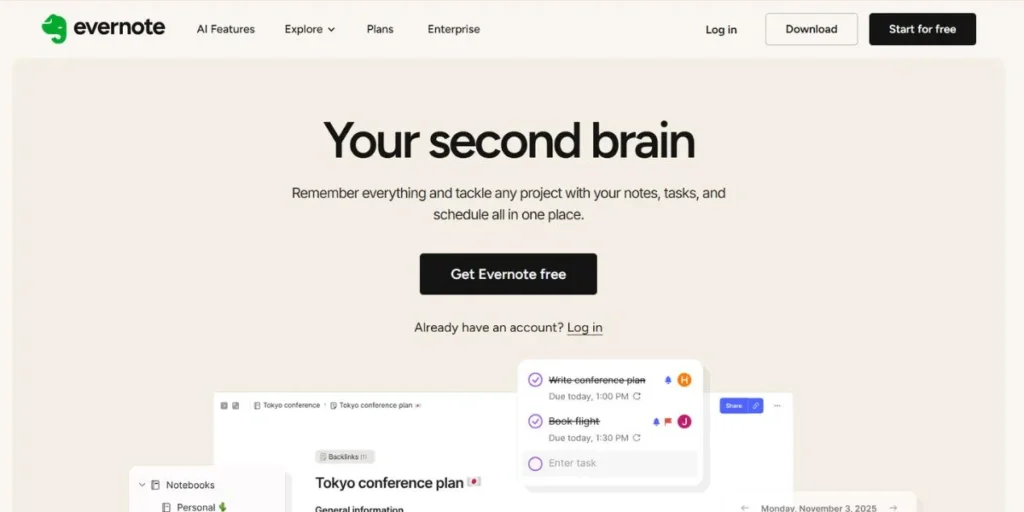
Evernote has created Skitch, an app that focuses on the rapid creation of annotations and communications rather than its sophisticated functionality. The tool is outstanding in fast marking up, using arrows and shapes, text and highlights that take only a few seconds to accomplish, hence it is best suited to the fast feedback and sharing casually. Its very tight integration with Evernote enables automatic synchronization of notes and its simplified drag and drop interface makes it easy to use even by low technical skill users requiring simple visual communication.
Key Features:
- Fast annotation tools
- Evernote integration
- Simple drag-drop interface
- Quick sharing options
Pros:
- Extremely easy use
- Free for basic
- Building upon the Evernote ecosystem.
- Minimal learning curve
Cons:
- Limited advanced features
- Development slowed
- Basic capture options
- Fewer updates recently
Best Use Case: Quick annotations and casual screenshot sharing with Evernote users
Website: https://evernote.com/products/skitch
9. TextSniper
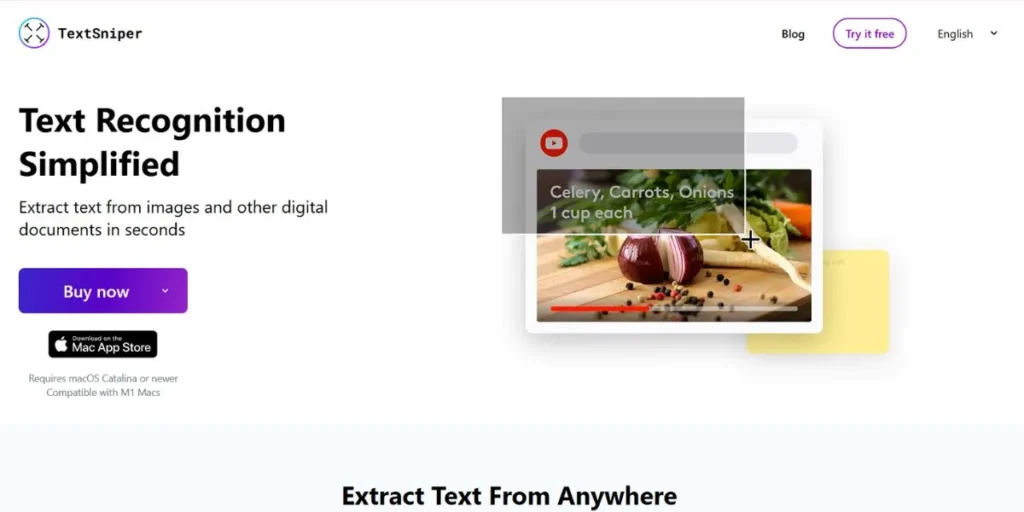
TextSniper is an ocr-based product that adds professional OCR features to the screenshot industry so that you can easily read a text or video or any other information on the screen with unbelievable precision. This is a new tool that allows the non-selectable text to be changed into copyable editable text instantly, and manual typing is done away with. TextSniper is one of Snipping Tools for Mac that can deliver an added value to researchers, students and professionals who work with scanned documents or text on images and simply do not want to restrict oneself to the nature of a traditional screenshot.
Key Features:
- Advanced OCR technology
- Instant text extraction
- Multiple language support
- QR code recognition
Pros:
- Highly accurate OCR
- Time-saving functionality
- Clean minimal interface
- One-time purchase
Cons:
- Specialized use case
- Not for general screenshots
- Mac-only availability
- Limited editing features
Best Use Case: It is applicable to extracting text on images, PDF files and other non-selectable items.
Website: https://textsniper.app
10. Lightshot
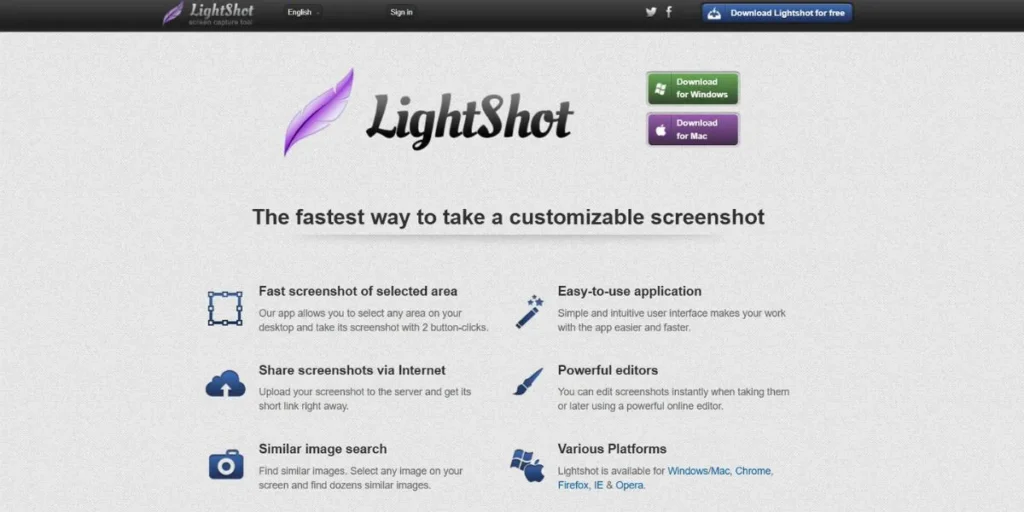
Lightshot espouses a simple and quick approach and presents a no-frills screen capture interface that gets out of the way. The free version has instant capturing and simple annotation options and direct sharing of images straight to the cloud servers. It has a minimalistic style so that any person can learn it within a few minutes and its search feature allows you to look online to find similar images. The model of zero cost and lightweight of Lightshot makes it an excellent introduction to the dedicated screenshot software among the users.
Key Features:
- Free unlimited usage
- Instant cloud upload
- Similar image search
- Cross-platform availability
Pros:
- Completely free
- Very lightweight
- Quick learning curve
- Fast sharing
Cons:
- Very basic features
- Limited editing tools
- Ads in interface
- No advanced options
Best Use Case: Basic screenshot needs with quick sharing for casual users
Website: https://app.prntscr.com/en/index.html
Comparison Table: Snipping Tools for Mac
|
Name |
Free/Paid |
Key Features |
Best For |
|
FireShot |
Free/Paid |
Full-page capture, multiple formats, browser extension |
Web page documentation |
|
Droplr |
Paid |
Cloud sharing, team collaboration, screen recording |
Team communication |
|
PicPick |
Free/Paid |
Image editor, measurement tools, color picker |
Designers and developers |
|
Monosnap |
Free/Paid |
Video recording, cloud storage, annotations |
Balanced functionality users |
|
Greenshot |
Free |
Open-source, customizable, plugin support |
Budget-conscious power users |
|
Snagit |
Paid |
Panoramic capture, professional editing, templates |
Training and documentation |
|
CleanShot X |
Paid |
Native Mac design, scrolling capture, cloud service |
Premium Mac experience |
|
Skitch |
Free |
Quick annotations, Evernote integration |
Fast feedback and markup |
|
TextSniper |
Paid |
OCR text extraction, multi-language support |
Text extraction needs |
|
Lightshot |
Free |
Basic capture, instant upload, image search |
Simple screenshot sharing |
How to Choose the Right Snipping Tool
- If you are only going to capture a web page, collaborate with teams, professional documentation or even just quick screen-shots, then identify your main application and narrow down your choices.
- Take into account your cost limitations because, although free programs such as Greenshot and Lightshot have good functionality, high-quality apps such as Snagit have enhanced features.
- Assess integration needs with your current workflow platforms such as Evernote, Slack, cloud storage vendors, or project management applications.
- Determine the level of complexity of editing between simple arrows and text to higher levels of layering and effects and annotations reserved by a professional.
- Check platform compatibility particularly when working on multiple platforms or require windows and Mac compatibility to support cross-platform working.
- A variety of Snipping Tools are available on Mac to attempt free trial or version to get a feel of the interface and functionality before investing in paid subscription.
Final Thoughts
The final choice of the best Snipping Tools to use on Mac is based on your business needs, workflow, and budget needs. Even though Apple in-built screenshot is an outstanding way to satisfy a rudimentary need, specialized snipping software opens greater productivity opportunities with high-quality capture controls, professional editing features, and ability to share with other apps without any hassle; and it is the way that you will change how you communicate visually. It may be a designer in need of pixel-perfect pixel measurements with PicPick, a team leader who needs to work immediately on your tasks with Droplr, or a content developer who can create tutorials with the full suite of Snagit.
There will be a tool that suits you. The money spent on the appropriate snipping software will be compensated in time wasted, enhanced clarity of communications and quality of professional presentation. You should begin with free solutions such as Greenshot or Lightshot to see what you require at this stage, and progress onwards to more specific tools as your settings develop. The ideal Snipping Tools for Mac is anything that vanishes into your workflows and taking a screenshot becomes smooth and comfortable.
FAQs
Can the best Sniping Tools on Mac be as good as paid ones?
Free programs such as Greenshot and Lightshot can be used to address simple screenshot tasks perfectly, but full-fledged programs, such as scrolling capture, advanced editing and OCR, and cloud collaboration, are affordable and worth the pricing to power users.
Snipping tools on Mac: Are they able to capture video?
Yes, a number of tools, such as Monosnap, Droplr, Snagit, etc., provide the functionality of screen recording along with screenshot, which will offer the full screen capture solution in a single tool.
Do I require a snipping tool in the case of already existing screenshots with Mac?
The native tools of Mac are useful in simple captures, but snapping specific applications include scrolling capture, instant annotations, cloud sharing, OCR text extraction and rich editing, which significantly reduce output.
Which snipping tool is best for capturing full web pages?
FireShot is an expert at doing full-page web captures with a high degree of accuracy, whereas CleanShot X and Snagit can have a high degree of scrolling capturing of web pages, providing an all in one solution to web page documentation.
Are Snipping Tools for Mac safe to use?
Famous snipping tools owned by trusted developers are harmless, yet they should be downloaded via official websites and privacy policies should be read about the screenshot information, as well as permissions must be considered prior to providing access to screen recording.